
Camera Main and Sub Stream Settings for AI AnalysisDiscover main and sub streams, their differences, and recommended AI settings from Hype Vision. Practical troubleshooting and integration tips included.
Industrial IP/CCTV cameras use main stream and sub stream settings to balance image quality and bandwidth. These settings directly impact AI-based analysis performance. The Hype Vision platform optimizes ideal stream configurations during setup to ensure connection reliability and analysis accuracy.
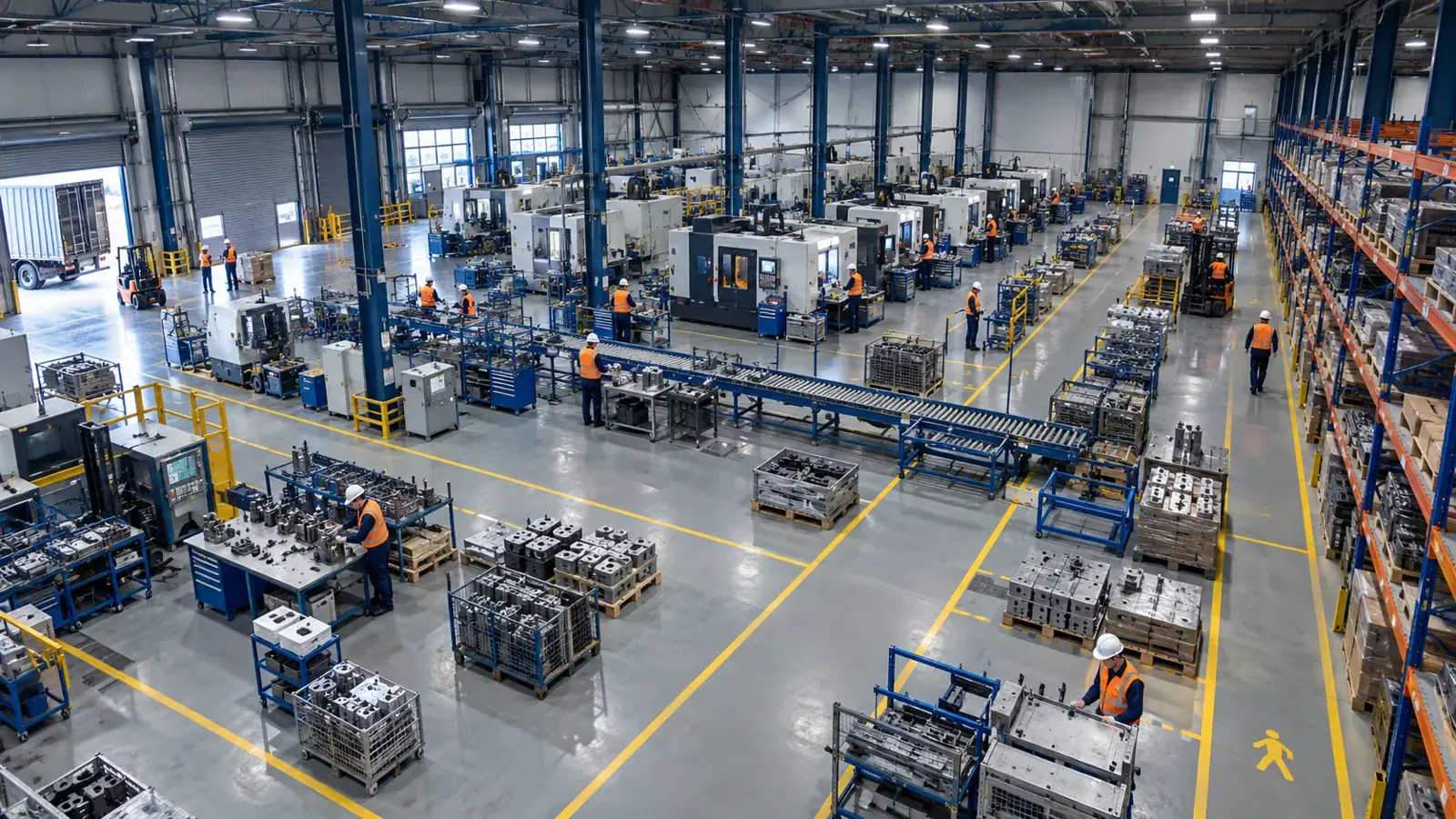
Main stream delivers high-resolution video, while sub stream offers bandwidth-optimized lower resolution. AI analyses typically rely on main stream for detail. Systematic checking of stream settings and connections is essential to resolve issues.
What Are Main Stream and Sub Stream?
Cameras usually provide multiple video streams simultaneously: the main stream offers high resolution and frame rate, while the sub stream delivers lower resolution and reduced data rate optimized for bandwidth and storage savings.
This multi-stream capability meets different system needs. Sub streams are often preferred for live monitoring or recording, whereas detailed analyses commonly use the main stream. Advanced platforms like Hype Vision recommend main stream quality specifically for AI processing.
- Main stream: high resolution, high fps, detailed video. Typically identified by /main or /1 in the RTSP URL.
- Sub stream: lower resolution, bandwidth-friendly fps, faster transmission. Usually marked as /sub or /2.
Key Differences Between Main Stream and Sub Stream
The primary difference lies in image quality and bandwidth usage. The main stream delivers high resolution crucial for AI accuracy and detail.
Sub stream is used when bandwidth is limited or many cameras are monitored simultaneously. However, its lower resolution can reduce detection accuracy in some AI models.
- Main stream: preferred for AI analysis due to high resolution and frame rate.
- Sub stream: suitable for recording or quick monitoring but not recommended for AI.
- Sub stream helps balance bandwidth and storage requirements.
When to Use Main Stream or Sub Stream for AI?
AI processes such as object detection, classification, pose and hand tracking require high-quality video. Hence, Hype Vision’s Hype-Model analyses recommend main stream usage.
Sub stream quality reduction may degrade AI performance, but it can be chosen in bandwidth- or processing-constrained environments with careful testing.
- Use main stream when quality is critical.
- Sub stream may be chosen if bandwidth is restricted and analysis detail is less important.
- Ideally, test both streams during pilot to decide.
Practical Troubleshooting Guide: Symptoms and Causes
Main/sub stream issues directly affect performance and image quality. Evaluate the following symptoms and causes step-by-step.
- Delayed or choppy video: Network bandwidth is limited or overloaded.
- Blurry or insufficient detail: Incorrect (sub) stream selected.
- AI fails accurate detection: Stream resolution and fps insufficient.
- Intermittent camera connection: RTSP/ONVIF protocol mismatch or network problems.
Step-by-Step Main/Sub Stream Checklist
- Identify the camera model’s RTSP and ONVIF stream URLs.
- Test both main and sub streams using ffprobe or VLC to check resolution, fps, and latency.
- Use ONVIF Device Manager to view and adjust device stream settings if possible.
- Verify which stream Hype Vision platform is receiving data from.
- Assess network bandwidth and performance; balance with sub stream if needed.
- If AI performance drops, restore or optimize stream settings accordingly.
- Compare test results of both streams in pilot phase before final decision.
Recommended Stream Settings for AI Analysis
Hype Vision prioritizes video quality and frame rate for AI. Main stream resolution and fps should be as high as possible.
Ideal settings might be 720p or 1080p resolution at 10–15 fps. Lighting conditions affecting analysis also need consideration.
Use quality industrial cameras and proper lighting to optimize results.
- Usage of main stream is mandatory.
- Prefer resolutions above 720p.
- Recommend frame rates of 15 fps or higher.
- Ensure clear and balanced lighting.
Hype Vision’s Stream Setting Discovery for Enterprise Integration
Hype Vision connects brand-agnostically to customers’ IP/CCTV infrastructure via RTSP/ONVIF to discover system parameters. This discovery analyzes main and sub streams to select the best source.
The platform integrates optimal stream configurations to maximize AI model accuracy and performance, enabling swift and effective pilot deployments on site.
- Automatic detection of existing streams.
- Assessment of stream quality and data load.
- Selection and recommendations aligned with AI model requirements.
This page answers: what is substream · main stream substream difference
Frequently asked questions
What is a substream and why is it used?
A substream is a secondary video stream from the camera with lower resolution and frame rate to save bandwidth and storage. It’s generally chosen for fast live viewing and recording.
What are the differences between main stream and sub stream?
Main stream delivers high-resolution, high-frame-rate video suitable for detailed analysis. Sub stream reduces network and storage load with lower resolution but is not ideal for AI.
Which stream does Hype Vision prefer for AI analysis?
Hype Vision generally uses main stream for AI to ensure high detail and frame rate required for accurate detection. Sub stream may reduce performance.
How can I test streams using RTSP/ONVIF tools?
Use media tools like ffprobe or VLC to test RTSP stream URLs for resolution, fps, and latency. ONVIF Device Manager lets you view and modify device stream settings.
What initial steps should I take if I experience streaming issues?
Check network connectivity and bandwidth, verify stream URLs, test video with ffprobe or VLC, then confirm correct stream usage in Hype Vision settings.
What can AI detect in your factory?
Let's review together which safety, quality and production analytics your existing security cameras can deliver.
- Free 15-minute technical call
- Camera infrastructure pre-assessment
- Feasible AI scenarios