
IP Camera Freezing or RTSP Disconnects: practical troubleshooting guideComprehensive guide on IP camera freezing and RTSP disconnects with symptoms, causes, and step-by-step solutions.
Freezing of IP camera images or interruptions in RTSP streams directly impact system performance and AI analysis accuracy.
This guide covers common symptoms, root causes, and easy-to-follow troubleshooting steps to resolve these issues efficiently.
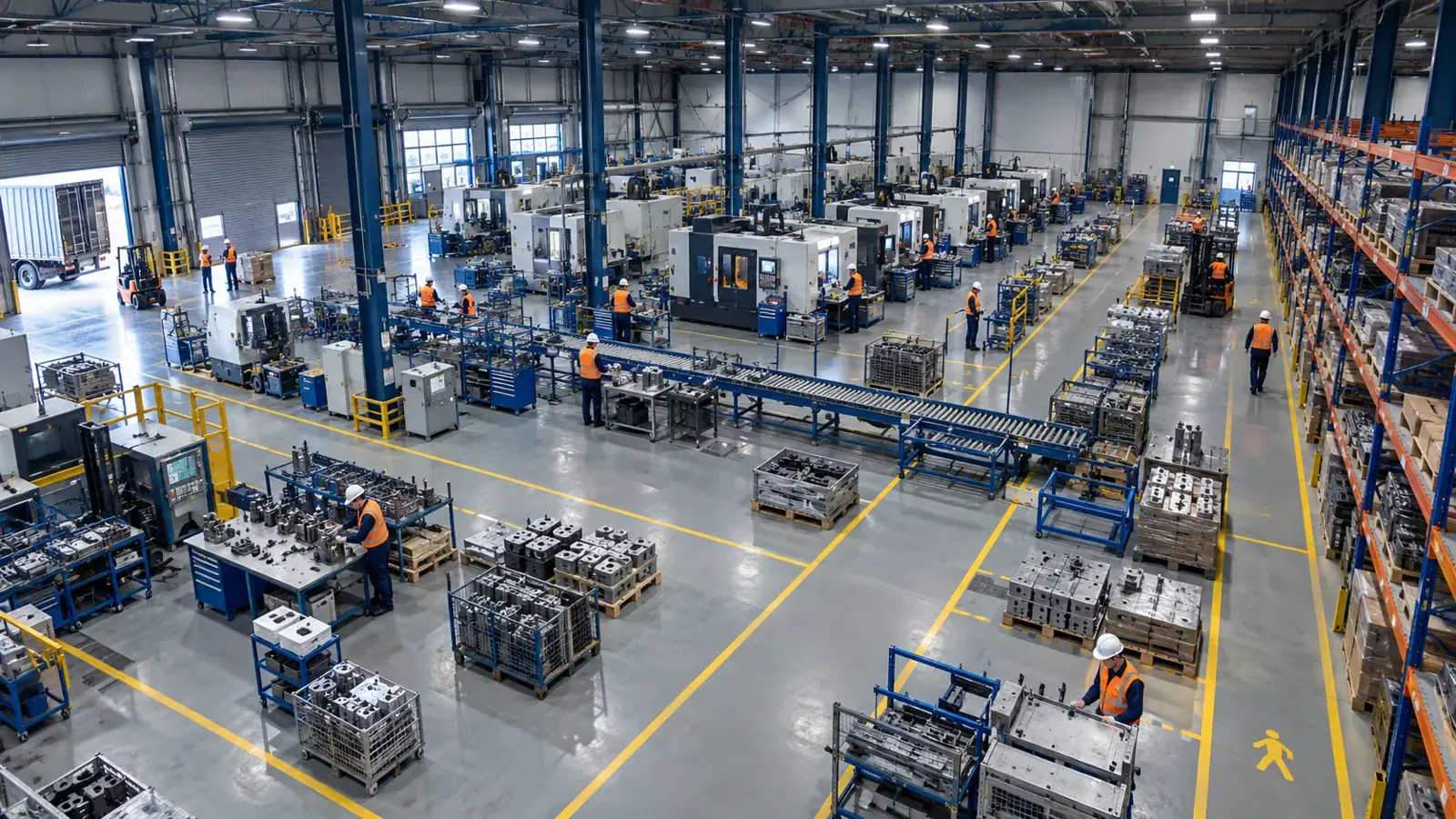
IP camera freezing and RTSP disconnects typically stem from network issues, device settings, or power problems. Systematic checks and proper tools help quickly identify and resolve these faults.
Symptoms and General Overview
Freezing of IP camera images or RTSP stream interruptions can manifest in various ways, including complete image freeze, frequent stuttering, or total stream stoppage.
Sometimes the issue occurs only after a certain time or during specific events, which negatively affects AI analysis accuracy and disrupts alarm and reporting processes.
- Continuous image freezing or repeated stuttering
- Sudden RTSP stream drop or connection loss
- Color distortion or pixel shifts in the video
- Interruptions or missing segments in video recordings
- Device overheating or unexpected reboots
Potential Causes
Freezing and disconnects may originate from software, hardware, or network infrastructure issues involving the IP camera, network devices, server/client, and power supply components.
Stable and uninterrupted data flow is critical as AI analysis platforms process camera video via RTSP and ONVIF protocols.
- Network problems: insufficient bandwidth, packet loss, high latency
- Cable or connection faults (especially power and Ethernet cables)
- Firmware or hardware-related camera freezes
- RTSP/ONVIF protocol incompatibilities or configuration errors
- Power fluctuations or inadequate power supply
- Resolution, FPS, or codec settings exceeding device/network capacity
- Camera overheating causing performance degradation
- Improper Hype-Model or platform parameter settings on software side
Step-by-Step Checklist
Follow the checklist below to systematically diagnose the problem, progressing from simple checks to more complex diagnostics for quick root cause identification.
- 1. Inspect physical connections of the camera and cables; look for loose or damaged cables.
- 2. Test the network connection; monitor switch/router port status and traffic usage.
- 3. Use VLC Media Player on your computer to open the RTSP stream and verify if the video is stable and continuous.
- 4. Analyze the RTSP stream’s packet continuity, bitrate, and codec status with command-line tools like ffprobe.
- 5. Review the camera’s service status, firmware version, and parameter settings via ONVIF Device Manager.
- 6. Check and update the IP camera firmware if necessary.
- 7. Optimize camera resolution and FPS values according to network capacity and analysis platform; try reducing bitrate.
- 8. If the camera overheats, evaluate environmental conditions or provide adequate cooling.
- 9. Verify alarms and data transmission protocols (REST API, PLC/relay) for fault indicators.
- 10. Restart or test the on-premise system and Hype Vision platform to assess the software environment.
Common Commands and Tool Recommendations
Various tools offer practical advantages when evaluating symptoms and analyzing RTSP streams. Essential recommendations include:
- VLC Media Player: for opening RTSP streams, real-time video monitoring, and freeze tests
- ffprobe: in-depth technical info and continuity analysis (e.g., packet delay, codec, bitrate)
- ONVIF Device Manager: for camera access, service status review, and configuration scanning
- Ping and Traceroute: to measure packet loss or latency to cameras and network devices
- Wireshark: detailed network traffic analysis and RTSP packet inspection
- Power meter or UPS system: to test power fluctuations
- Hype Vision platform logs and alarm records for error notifications
Recommended Settings for AI Analysis and Hype Vision
The Hype Vision platform’s AI models require consistent video streams. Freezing and disconnections degrade analysis quality, causing misclassification and missed alarms.
Selecting correct camera parameters is crucial for analysis effectiveness.
- Resolution and Frame Rate Selection: excessively high resolution overloads the network; 720p or 1080p at 15–20 FPS is generally sufficient.
- Lighting Conditions: ensure industrial lighting quality and proper integration with industrial cameras for quality control.
- Model Parameters: within the Hype-Model family, optimize image quality and continuity for object detection, classification, and pose tracking.
- RTSP Stream Protocol: verify video codec settings and network packet size during Hype Vision discovery to avoid stream interruptions.
- On-Premise Environment: ensure minimal external interference in closed-loop network architectures.
- Alarms and Notifications: activate automatic alerts (panel, WhatsApp/SMS, VMS pop-ups) for immediate issue response.
Hype Vision’s Role in Enterprise Integration
Hype Vision autonomously discovers IP or CCTV cameras via platform-independent RTSP and ONVIF protocols, analyzing connectivity and video quality.
It tests and adapts necessary settings during pilot phases to ensure smooth and efficient AI analysis operation in enterprise deployments.
This page answers: ip camera freezing · rtsp disconnect
Frequently asked questions
Why does the IP camera image freeze?
Image freezing typically results from network interruptions, camera hardware faults, insufficient power supply, or video resolution exceeding network capacity.
Why does the RTSP stream disconnect and how can it be tested?
RTSP streams may disconnect due to packet loss, network latency, or protocol incompatibilities. Tools like VLC and ffprobe allow easy stability testing of the stream.
Which settings enable healthier AI analysis?
Optimal settings include resolutions between 720p and 1080p, frame rates of 15–20 FPS, good lighting, network stability, and adapting Hype-Model parameters during discovery.
Why are cable and power checks important?
Continuous video requires robust camera and network cables plus a stable power supply; weak connections can cause freezing and disconnections.
How does Hype Vision detect issues and contribute to solutions?
Hype Vision automatically scans RTSP/ONVIF connections and video quality during system discovery, identifying problematic settings and optimizing them for integration.
What can AI detect in your factory?
Let's review together which safety, quality and production analytics your existing security cameras can deliver.
- Free 15-minute technical call
- Camera infrastructure pre-assessment
- Feasible AI scenarios