
How to Reduce RTSP Stream Latency? Practical Troubleshooting GuideLearn causes, control steps, and optimal settings to minimize RTSP/IP camera video latency for live monitoring and AI analysis.
Video latency in RTSP/IP camera systems is a major challenge for live monitoring and AI-driven analysis. This delay harms both viewing experience and real-time detection performance.
This guide explains the key causes of RTSP latency, step-by-step detection and reduction methods, and practical tips for configuring Hype Vision’s AI platform for optimal results.
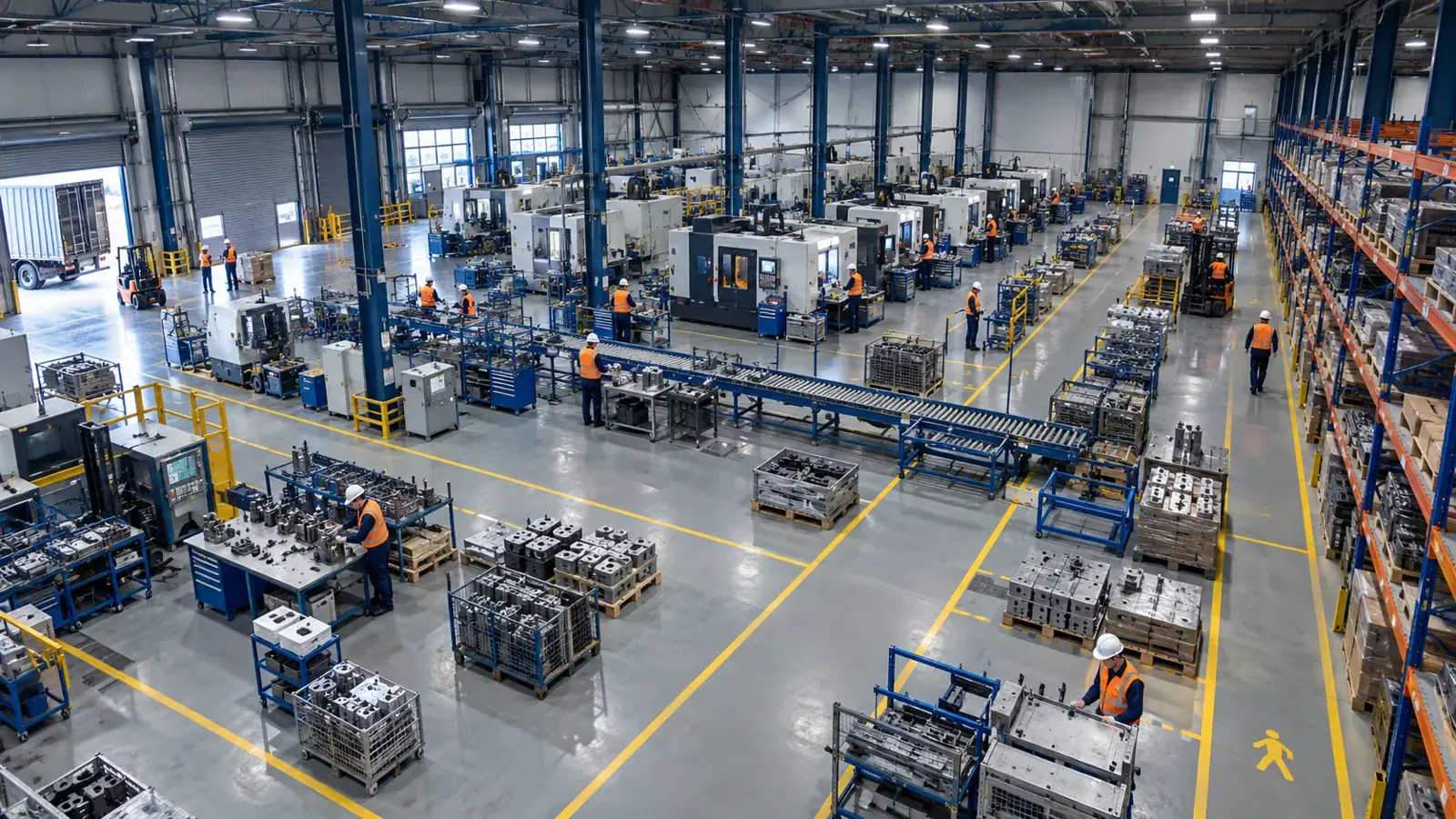
To reduce RTSP video latency, systematically review network conditions, camera settings, and encoding parameters. Proper network setup, low-latency codec selection, and firmware updates help minimize delay.
RTSP Latency Symptoms and Possible Causes
RTSP video latency typically appears as a delay between the live scene and displayed image during monitoring or AI analysis, sometimes lasting several seconds or more.
Common causes include bandwidth limitations, camera codec and resolution settings, buffering in the RTSP streaming protocol, delays in network devices, and occasionally hardware performance issues.
- Packet loss or insufficient bandwidth on the network
- High latency in network devices between camera and VMS
- Increased processing load due to high resolution and bitrate
- Buffering and latency differences depending on codec type (e.g., H.264, H.265)
- Excessive buffering by the RTSP client
- Outdated camera software or firmware problems
- Use of low-performance processors for AI analysis
Step-by-Step RTSP Latency Checklist
A systematic troubleshooting approach is essential to identify and mitigate latency issues in stages.
- 1. Check network performance (ping, jitter measurement, bandwidth test).
- 2. Verify and update camera software and firmware if needed.
- 3. Review RTSP stream parameters: resolution, fps, bitrate.
- 4. Optimize video codec settings by selecting lower latency profiles.
- 5. Reduce buffering settings on RTSP clients (e.g., VLC, VMS).
- 6. Inspect and optimize network device performance and QoS settings.
- 7. Confirm cable quality and connections between camera and server.
- 8. Compare latency using different RTSP clients if possible.
- 9. Use ONVIF Device Manager to check camera features and compatibility issues.
- 10. Apply processing power upgrades and model optimizations for AI analysis.
Practical Tools and Command Recommendations
Certain tools and commands help identify the origin of latency, applicable for both network and IP camera diagnostics.
- ffprobe (part of FFmpeg): Quickly view RTSP stream configurations and codec details.
- VLC Media Player: Open RTSP streams to test playback buffering settings.
- ONVIF Device Manager: Inspect camera capabilities, supported protocols, and stream configurations.
- ping and traceroute: Detect packet delay and routing issues on the network.
- iperf3: Test network bandwidth and stability.
- Wireshark: Analyze network traffic to detect packet loss and retransmissions.
Recommended RTSP Settings for AI Analysis
Minimizing latency is critical for the Hype-Model image processing platform's AI functionality. Ideal RTSP settings should avoid increasing delay.
General recommendations include balancing resolution and fps, choosing low-latency codec profiles, and reducing startup buffering where possible.
- 720p resolution offers a good balance of performance and speed for most applications.
- Maintaining fps between 15-20 optimizes processing load.
- Prefer low-latency codec profiles over H.264 when supported by the camera.
- Reducing GOP (Group of Pictures) length in camera settings decreases latency.
- Keep RTSP client buffering at a minimum to enable real-time data reception.
- On-premise setups benefit from low-latency network infrastructure and proper lighting to enhance camera performance.
Discovering and Applying Latency Settings with Hype Vision
Hype Vision connects brand-independent RTSP/IP cameras and optimizes them for AI analysis, carefully addressing system latency during integration.
RTSP streams undergo thorough pre-integration testing to determine ideal parameters and provide infrastructure-specific recommendations.
This ensures AI analysis operates in real-time and integrates precisely with critical decision support systems.
This page answers: rtsp latency · ip camera video latency
Frequently asked questions
How much can I reduce RTSP video latency?
Latency depends on hardware, network, and software factors. Typically, proper network configurations, updated camera firmware, and optimized codec settings can reduce latency to acceptable levels.
How do camera FPS and resolution changes affect latency?
Higher resolution and FPS increase processing and network load, raising latency. A moderate setting like 720p at 15-20 FPS offers an optimal balance between performance and delay.
How can I adjust RTSP client buffering?
Players like VLC allow setting a small pre-buffer size. Too much buffering increases latency, while too little can cause interruptions. Testing intermediate values helps find the ideal balance.
Which network issues most increase RTSP latency?
High packet loss, congested networks, limited bandwidth, and long ping times directly increase RTSP latency.
Why is reducing RTSP latency important for AI analysis?
Low latency ensures analysis results are delivered in real time, enabling fast, accurate control and alarm systems.
What can AI detect in your factory?
Let's review together which safety, quality and production analytics your existing security cameras can deliver.
- Free 15-minute technical call
- Camera infrastructure pre-assessment
- Feasible AI scenarios